

Adobe Illustrator for beginners Part 2
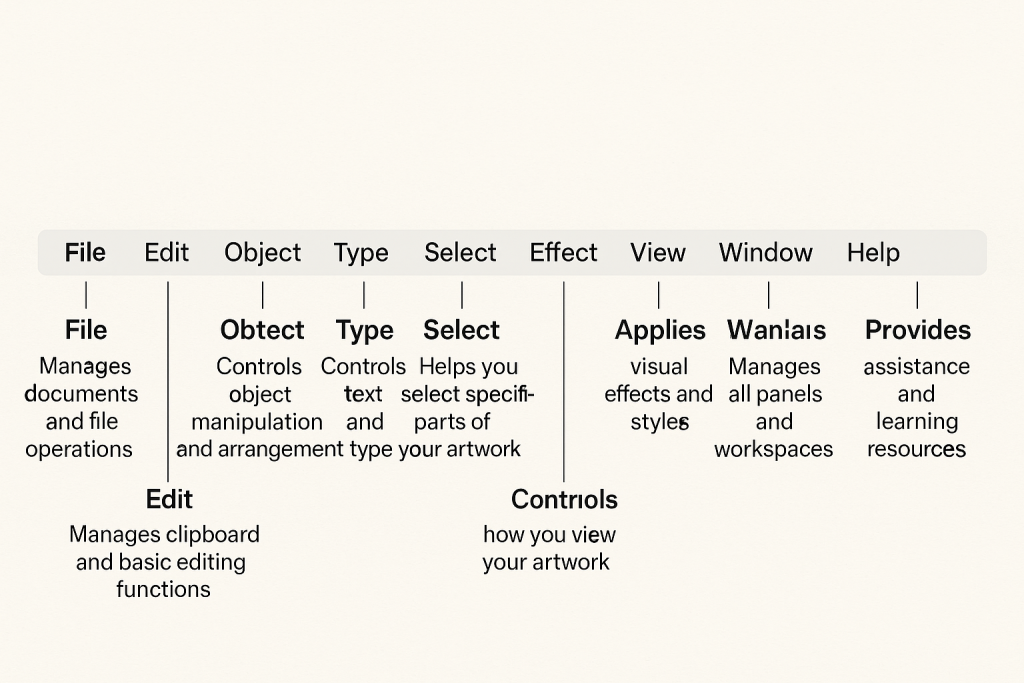
Today we are going to check on the elements on the Menu Bar of the Adobe Illustrator. These are being found on the upper part of the illustrator App. They gives access to most of the program’s tools and settings.
Each of them has specific function and how is being used and collaboratively works together to bring out the desired design at the end of the design.
If you didn’t check on part one click here.
Below are some of the functions and usages of each element:
1. File
Function: Manages documents and file operations.
Usage:
- Create, open, close, save, or export files.
- Import images and place external content.
- Print artwork.
- Access document settings and version history.
2. Edit
Function: Manages clipboard and basic editing functions.
Usage:
- Undo/redo actions.
- Cut, copy, paste (including in place or on all artboards).
- Clear objects.
- Find and replace text or objects.
- Edit colors, preferences, and keyboard shortcuts.
3. Object
Function: Controls object manipulation and arrangement.
Usage:
- Transform (move, rotate, scale).
- Group/ungroup objects.
- Lock or hide objects.
- Expand or rasterize artwork.
- Apply path operations (e.g., offset path, join, blend).
4. Type
Function: Controls text formatting and type tools.
Usage:
- Create and edit text.
- Change fonts, sizes, spacing, and alignment.
- Convert text to outlines.
- Access OpenType features and paragraph styles.
5. Select
Function: Helps you select specific parts of your artwork.
Usage:
- Select all, deselect, or reselect items.
- Select objects by appearance, fill color, stroke color, or similar attributes.
- Use isolation mode for editing specific objects.
6. Effect
Function: Applies visual effects and styles.
Usage:
- Add shadows, glows, distortions, 3D effects, and more.
- Apply Photoshop effects like blur, texture, or stylize.
- Preview or edit effects in the Appearance panel.
7. View
Function: Controls how you view your artwork.
Usage:
- Zoom in/out, fit artboard in window.
- Switch between preview, outline, and pixel view.
- Show/hide rulers, guides, grids, and smart guides.
- Toggle snapping options.
8. Window
Function: Manages all panels and workspaces.
Usage:
- Open or close panels like Layers, Swatches, Color, and Appearance.
- Access saved workspaces or reset the workspace layout.
- Show artboards and document info.
9. Help
Function: Provides assistance and learning resources.
Usage:
- Search for tools, commands, or help topics.
- Access Adobe tutorials and support.
- Report issues or provide feedback.
Conclusion
Follow us for more learning and interesting articles. Thank you for reading, don’t forget to leave your comment on the comment section below. Your data are well secured and are being used only to improve the performance of our site.